Point & Prompt
Describing what's on your screen to AI is slow and lossy — a picture is worth a thousand tokens. Built a capture system so users can show AI what they see instead of explaining it.
TL;DR
Describing what's on your screen to AI is slow and loses nuance — showing it is instant. I built a multimodal capture system for a desktop AI app: snipping-tool-style region selection, fullscreen grab, global hotkeys, and drag-drop. Screenshots flow into chat as inline attachments sent to vision-capable models (Claude, GPT-4o, Gemini).
Overview
The Problem
AI can't see what you're looking at
Desktop AI assistants are text-only by default. When you need help with something visual — a layout bug, an error dialog, a design mockup, a chart — you're forced into a lossy translation: describe what you see in words and hope the AI understands. The gap between visual context and text-only input creates friction, misunderstanding, and wasted turns.
“Show, don't tell — let users point at the problem instead of describing it.”
— Design principle for multimodal AI
Architecture
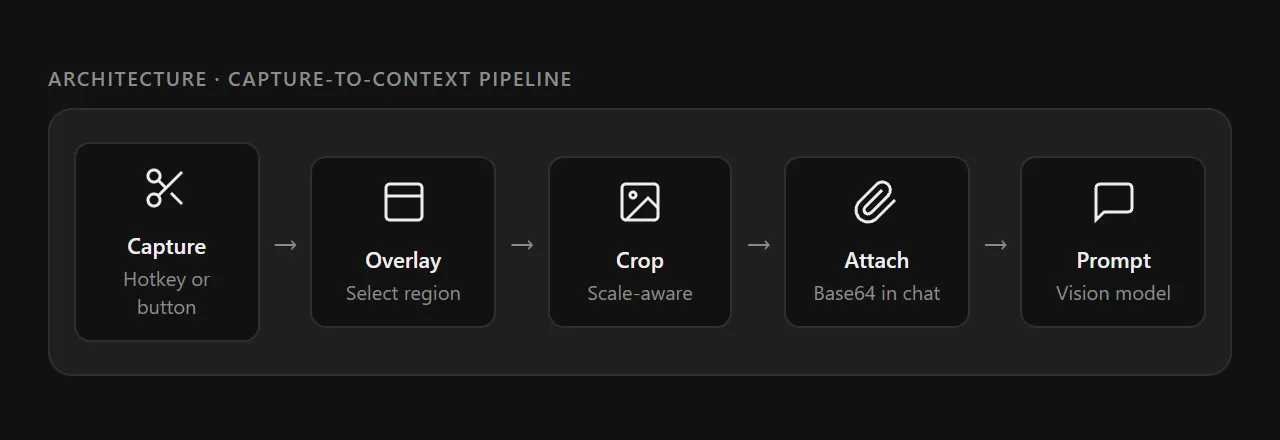
The capture-to-context pipeline
Point & Prompt spans all three Electron process layers — main process for native screen capture APIs, a dedicated overlay window for region selection, and the renderer for attachment management and AI streaming.
Capture
Two capture modes
Region Capture — Snipping Tool
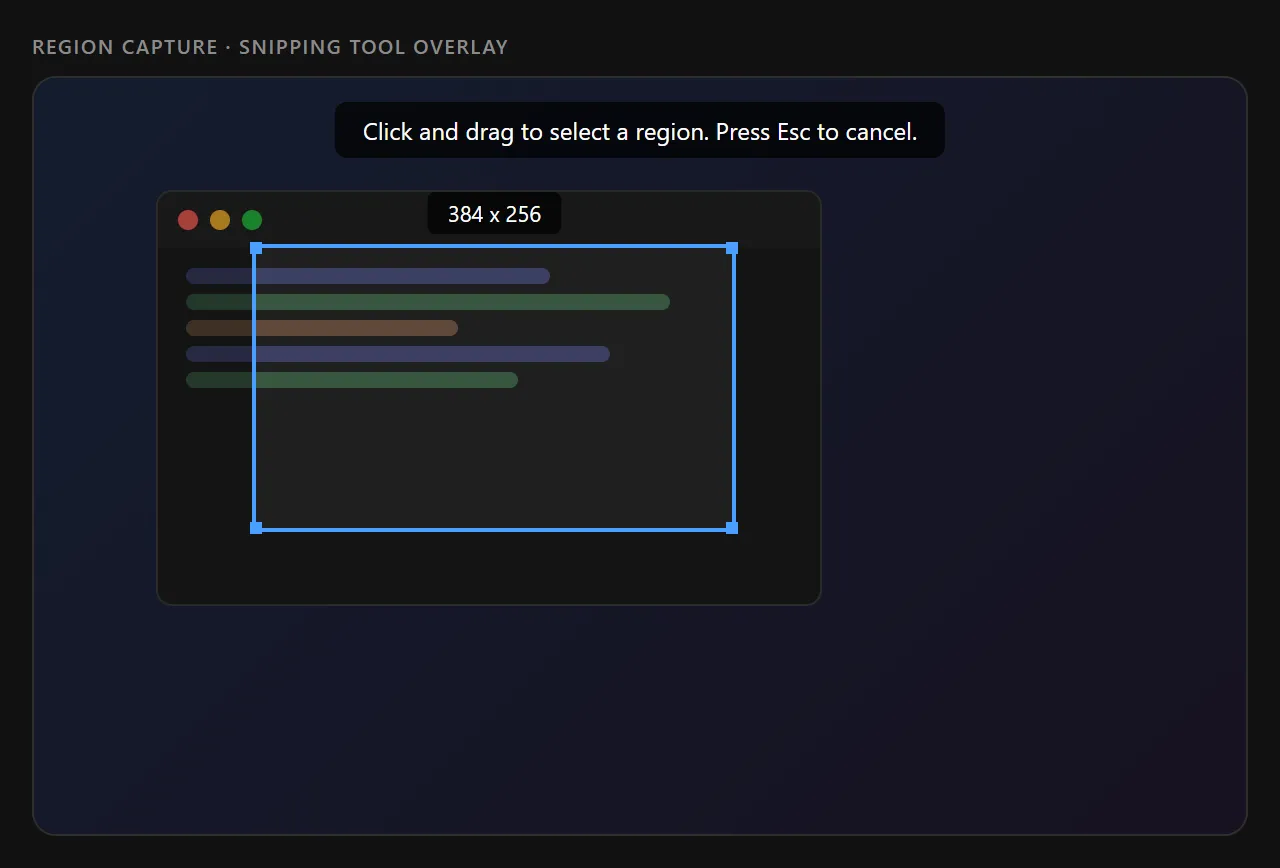
A transparent overlay window covers the entire screen. The user draws a rectangle to select a precise region. The overlay shows a dimension label, corner handles, and a dimmed background around the selection. On release, the overlay closes, the main process captures the full screen and crops to the selected coordinates (scaled by display DPI factor).
Fullscreen Capture — Instant Grab
A one-click capture that grabs the entire primary display at native resolution. No overlay, no selection — the full screen is captured and immediately attached to the message composer. Useful for sharing complete UI states, error screens, or multi-window layouts.
Global Hotkeys
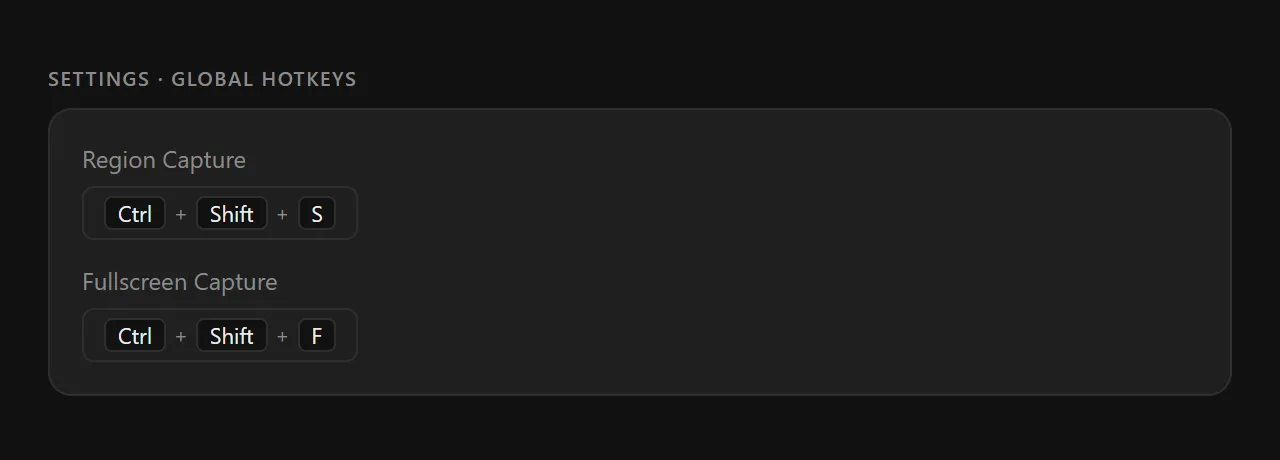
Both capture modes are bound to configurable global keyboard shortcuts. These work from any application — the user doesn't need Pokey to be focused. Hotkeys are stored in SQLite and loaded on app startup.
Integration
From capture to conversation
Screenshots flow directly into the message composer as inline attachments. The user adds a text prompt, and the image is sent as base64-encoded context to a vision-capable model (Claude, GPT-4o, Gemini).
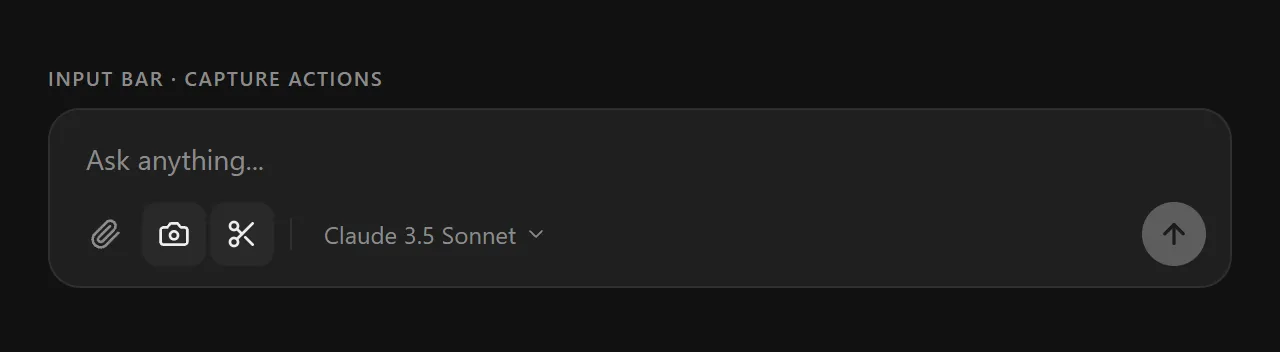
Input bar with capture actions
Three capture actions sit alongside the file picker in the input bar: paperclip (files), camera (fullscreen), scissors (region). A model selector lets users pick the right vision-capable provider per message.
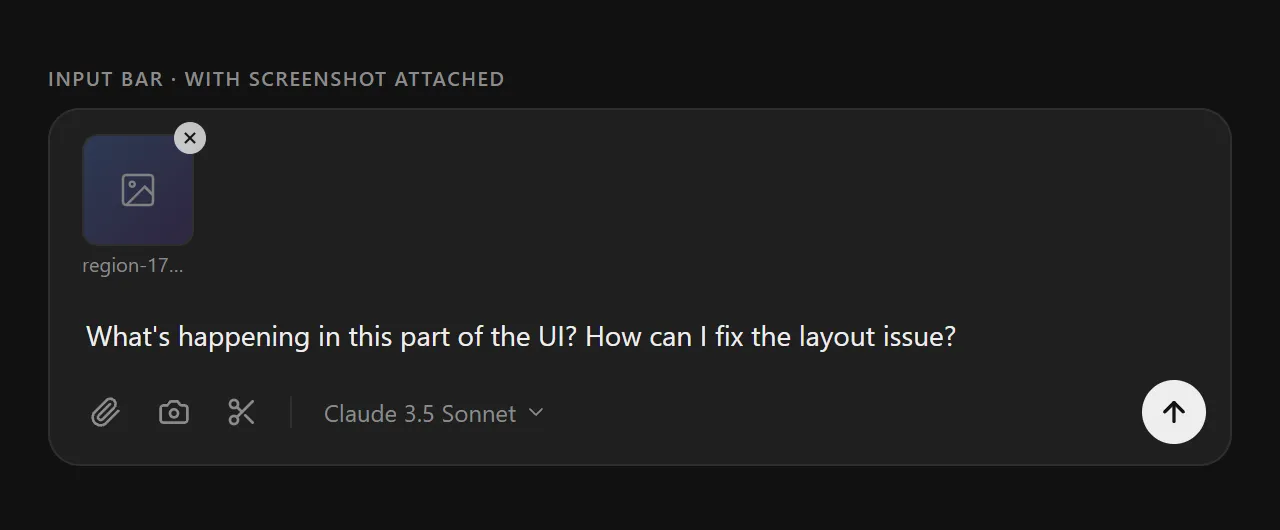
Screenshot attached, ready to prompt
After capturing, the screenshot appears as an inline thumbnail above the textarea. Users can remove it (X on hover), add more captures, or attach files alongside. The text prompt gives the AI context for what to do with the image.
Details
Implementation decisions
DPI-Aware Cropping
The overlay draws at CSS pixels but the screen capture is at native resolution. All region coordinates are multiplied by display.scaleFactor before cropping to ensure pixel-perfect results on HiDPI displays.
No Fullscreen Mode
Transparent BrowserWindows crash when closed from fullscreen on Windows 11. The overlay uses setAlwaysOnTop with 'screen-saver' level instead — rendering above the taskbar without the native fullscreen transition.
Capture-then-Crop Pattern
The overlay closes before the screen is captured (with a 150ms delay). This ensures the overlay itself doesn't appear in the screenshot. The full screen is grabbed, then cropped to the selection region.
Drag-and-Drop Parity
In addition to capture buttons and hotkeys, files can be dragged directly onto the input bar. The onDrop handler reads files as base64 and creates the same attachment objects, so all input paths converge to one format.
Provider-Aware Routing
The per-message provider selector lets users pick vision-capable models (Claude, GPT-4o, Gemini) for image prompts while keeping a text-only model as default for regular conversations.
Reflections
What I learned
Point & Prompt started as a convenience feature and became one of Pokey's most-used capabilities. The insight is simple: the fastest way to give AI context is to show it, not describe it. A two-second screenshot replaces a two-paragraph description.
The hardest part wasn't the AI integration — it was the Electron plumbing. Cross-process IPC, transparent overlay windows, DPI scaling, and Windows 11 compatibility quirks consumed more design attention than the AI streaming itself. Desktop apps have a complexity floor that web apps don't.
The overlay snipping tool was inspired by the Windows Snipping Tool and macOS screenshot selection. Replicating that feel in Electron (canvas drawing, corner handles, dimension labels) required careful attention to native conventions. Users expect pixel-level precision from a capture tool — approximate is unacceptable.
The bigger picture
“Point & Prompt is half the story. Once the AI can see your screen, it can also gather structured information about what it sees — using the same card-based input system from our Structured Information Gathering research. Vision + structured input = AI that sees a layout bug, asks you targeted questions about the expected behavior, and generates a fix.”